The easy way
- Install Stash, move it to Applications and open it once.
- Open Settings → AI and click Connect next to VS Code.
- Reload the window.
Stash changes only its own entry, keeps a one-time backup of the file, and stops without changing anything if the file is locked or looks unusual.
By hand
Open the Command Palette (⇧⌘P), run MCP: Add Server, or edit your user file ~/Library/Application Support/Code/User/mcp.json:
{
  "servers": {
    "stash": {
      "type": "stdio",
      "command": "/Applications/Stash.app/Contents/MacOS/Stash",
      "args": [
        "--mcp"
      ]
    }
  }
}Note servers, not mcpServers. VS Code Insiders has its own folder, “Code - Insiders”.
Try asking
- “Use the curl command I copied and write a test for it.”
- “Put the error I copied from the terminal into an issue draft.”
- “What links did I copy about this API?”
Trust
VS Code asks whether you trust a local server before it starts it, because such servers run on your machine. That question is right to ask: check that the path is Stash in your Applications folder.
What it can see
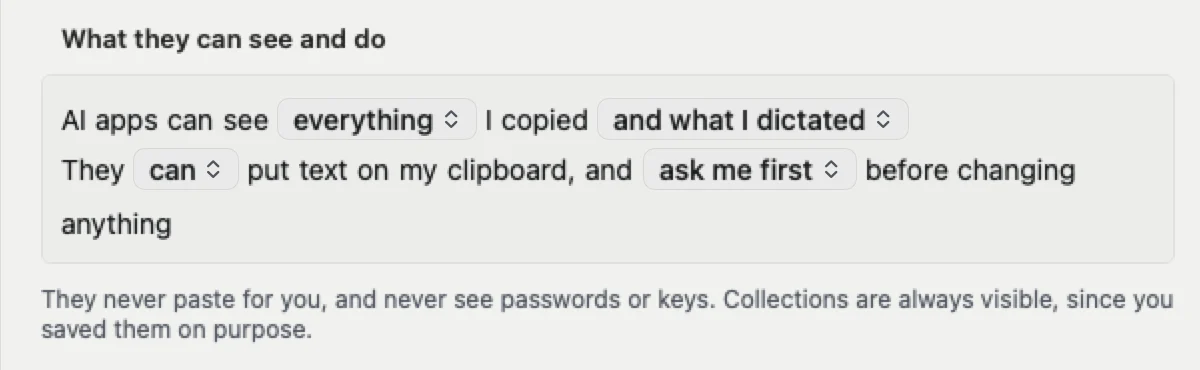
At first: your whole history, collections, dictations, snippets and dictionary, except secrets Stash recognises. What it reads goes to that app and usually to its company. Narrow it in Settings → AI: the last hour, day, 7 or 30 days, with or without dictations. The full list.
Questions
Do I need GitHub Copilot?
You need a chat in VS Code that can use MCP tools. VS Code's guide uses Copilot.
Does it work in a dev container or over Remote SSH?
Not from the other machine: the connector must run on the Mac that has Stash.
Why is my entry ignored?
Most often because it's under mcpServers. VS Code reads servers.